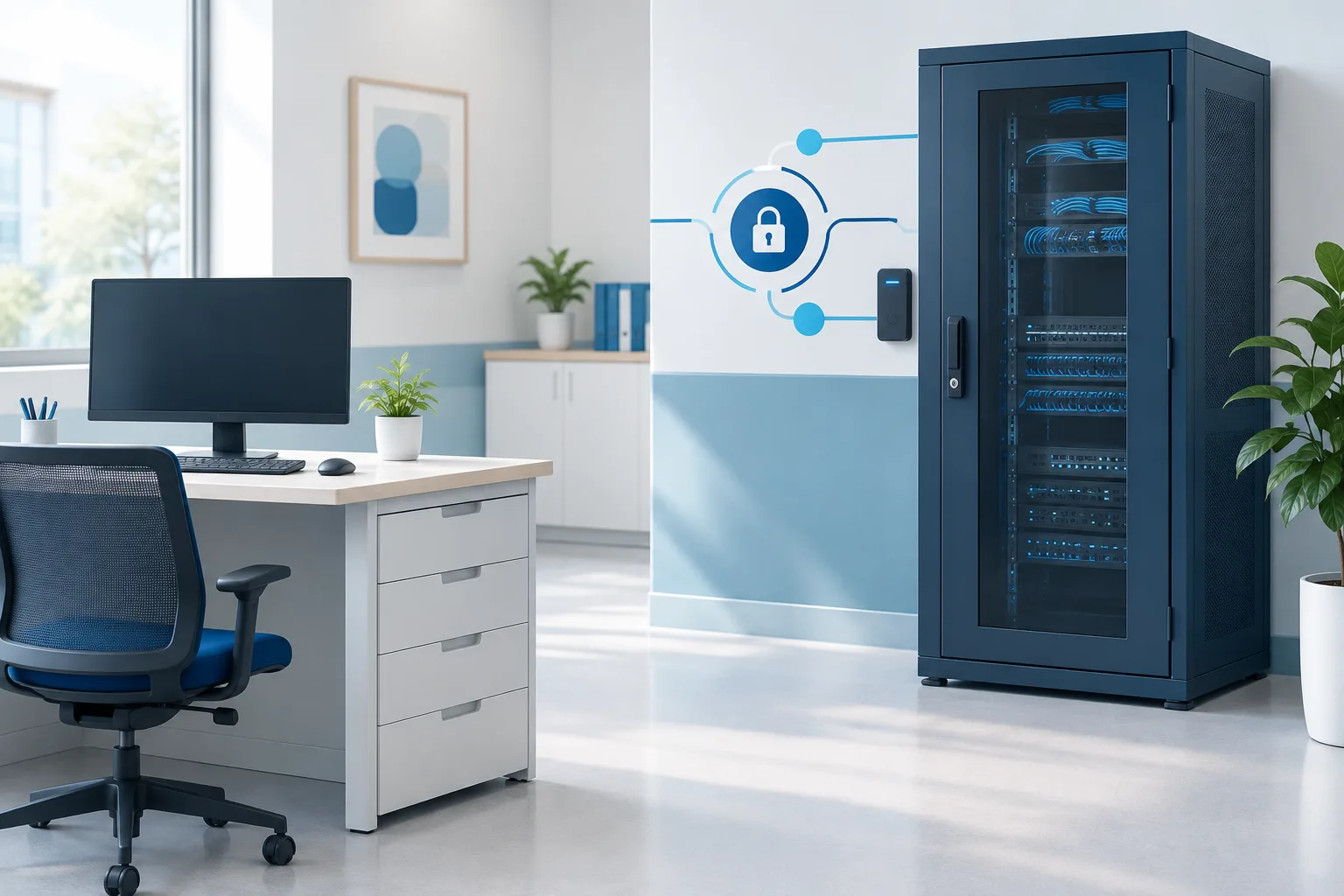
Temporary vendor access to healthcare systems can help a clinic address a support issue, maintain technology, or complete a planned change. The key is to treat access as a defined task, not an open-ended invitation. Before a vendor connects, decide who approves the work, what the vendor needs to reach, how the session will be observed, and how access will be shut off afterward.
A simple, repeatable process can reduce unnecessary exposure while giving an outside technician a clear path to do the approved work. The details will depend on the systems involved and the task, but the following steps provide a practical starting point for healthcare vendor remote access and onsite support.
Define the work before granting access
Start with an internal sponsor, such as the person responsible for the affected system or the clinic’s IT lead. The sponsor should describe the issue or planned work in plain language and identify the systems involved. Avoid vague requests such as “access to the network” when the task concerns one workstation or application.
Record the vendor’s name, the reason for access, the approved system or destination, the actions they may take, and the expected start and end of the access window. Include who will be available to answer questions or approve a change. If the work expands beyond its original scope, pause and get approval before granting additional access.
This short plan helps the clinic and vendor share the same expectations. It also gives the person reviewing activity afterward a useful reference for what was authorized.
Use a separate, named account
Where the system allows it, give each technician a unique account tied to their identity. Avoid shared logins or passing a staff member’s credentials to a vendor. A named account makes it easier to confirm who was authorized and to review activity associated with the support work.
Use an account created for the specific engagement or a controlled vendor account with an expiration, if available. Do not leave an account enabled simply because the vendor might be needed again. For recurring support, establish a process for approving and reviewing access rather than treating an old account as permanently approved.
Grant only the permissions the task needs
Apply least privilege in practical terms: limit access to the system, data, and actions needed to complete the approved task. A vendor troubleshooting a connection may need to inspect configuration, while a vendor making an approved change may need elevated permissions for a limited period. These are different levels of access and should not be treated as interchangeable.
- Limit the destination: Identify the specific application, server, device, or network segment the vendor needs. Avoid broad access to unrelated clinic systems.
- Limit the actions: Use read-only access when inspection is sufficient. Grant permission to change settings only when the work requires it and the clinic has approved the change.
- Limit the duration: Set an access window that matches the work. If the task takes longer, the sponsor can review and approve an extension.
- Separate higher-risk changes: Agree in advance on how the vendor will request approval before changes that could affect clinical workflows, data, or system availability.
For access that could expose electronic protected health information, involve the appropriate privacy, security, or compliance lead in deciding what is necessary. Technical access should reflect the task and the clinic’s policies, not simply the maximum access a tool can provide.
Require MFA and use an approved connection method
Require multifactor authentication (MFA) for vendor accounts and remote connections where the system supports it. MFA adds a verification step beyond a password. It is one part of access control, not a substitute for a named account, limited permissions, or a defined end time.
Use a clinic-approved remote access method and confirm who is initiating the session. Avoid improvised connections or unapproved remote-support software. The CISA guide to securing remote access software offers additional considerations for managing remote access tools.
Before a session begins, tell the vendor how to contact the internal sponsor and how to request additional permissions. If a temporary password or credential must be provided, use an approved secure method and do not reuse it for unrelated access.
Plan for oversight, whether work is remote or onsite
For remote work, have an internal contact available and agree on how the session will be supervised. Depending on the system and the nature of the work, oversight may mean watching the session, checking in at agreed milestones, or reviewing available activity records afterward. Make sure the sponsor knows when the vendor has connected and when the session has ended.
Logs can help establish what happened, but the information available varies by system and tool. Know which records can be reviewed and who is responsible for checking them. Where the tool allows it, preserve relevant session or account activity according to the clinic’s processes.
For onsite work, confirm the technician’s identity, have them follow the clinic’s visitor procedures, and provide an escort or designated contact when appropriate. Physical presence does not remove the need to limit access to the systems and spaces required for the task.
Clinics reviewing their broader remote access practices may also find this guide to remote working solutions for healthcare organizations useful.
Consider the vendor relationship and data involved
Whether a business associate agreement is needed depends on the vendor’s role and whether its work involves handling protected health information on the clinic’s behalf. The clinic’s privacy or compliance lead should assess the arrangement, with legal counsel involved when appropriate. An agreement can document obligations, but it does not by itself set up technical controls or limit an account’s permissions.
Keep the contractual review and the access decision connected, but treat them as separate steps. A vendor may be approved for a particular service while still needing access limited to a specific task and time. For more on choosing and evaluating providers, see the clinic’s guide to choosing a healthcare IT vendor.
Close access and verify the work is finished
When the task ends, the sponsor should confirm that the vendor is disconnected and that temporary access is no longer available. A closeout is more than disabling a user account: remote tools, sessions, credentials, and other access paths may need attention too.
- Disable or expire the vendor account and remove temporary permissions.
- Terminate active remote sessions and revoke temporary credentials, tokens, or keys where applicable.
- Remove temporary remote-support software or agents if they are no longer needed and removal is appropriate for the system.
- Review available logs or session records and note what work was completed, including approved changes or follow-up items.
- Verify that the account or connection no longer works, using an appropriate test or system check.
- Update the access record and notify the internal sponsor that closeout is complete.
If the vendor needs continuing access, document the reason and arrange a new approval and review rather than leaving temporary access in place by default. A separate IT access closeout checklist can help clinics think through access removal more broadly.
A practical access workflow protects both care and systems
Temporary access works best when the clinic knows who is connecting, what they are authorized to do, how the session will be overseen, and how access will be closed. A brief written record and a consistent approval process help make those decisions clear without turning routine support into an open-ended security exception.
Zevonix provides healthcare IT management and support, including help desk assistance and HIPAA compliance support. Clinics can request a free IT assessment or call (904) 658-0777 to discuss their IT needs.